

Navette
The SFTP, FTP and FTPS client designed for macOS.
Browse your servers like your own folders, transfer without babysitting and keep your files in sync, in a native app that follows your Mac's look.
On first launch, macOS asks for your approval: it takes about a minute. See how.

First launch
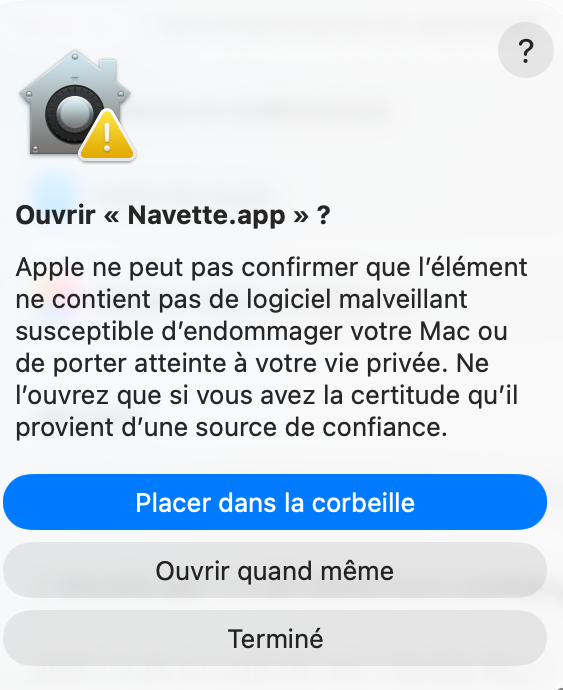
Navette is signed but not yet notarized by Apple: notarization requires a paid Apple Developer Program membership. macOS therefore cannot verify the developer and blocks the first launch. This is expected, and it only happens once. The screenshots below show macOS in French; the windows and buttons are the same in English.
Download the disk image
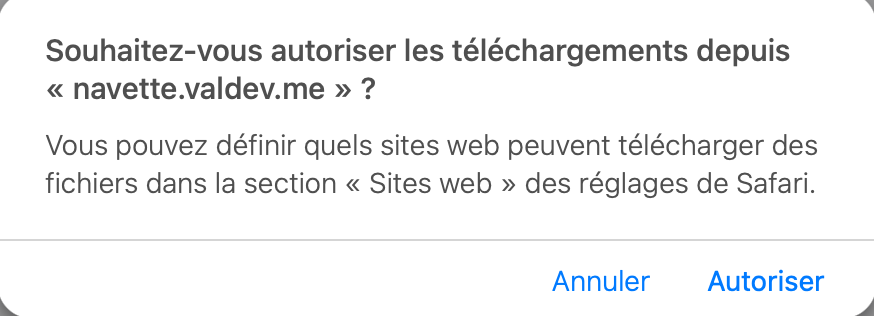
Click Download. If Safari asks whether to allow downloads on “navette.valdev.me”, click Allow.
Install the app
Open
Navette.dmg, then drag Navette.app onto the Applications folder.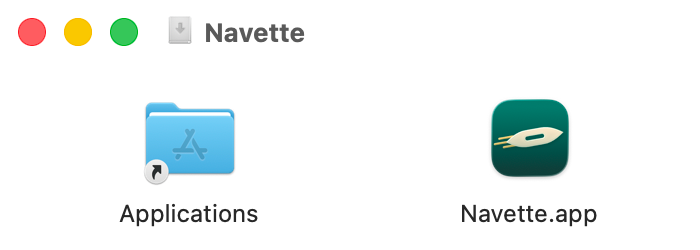
Launch Navette once
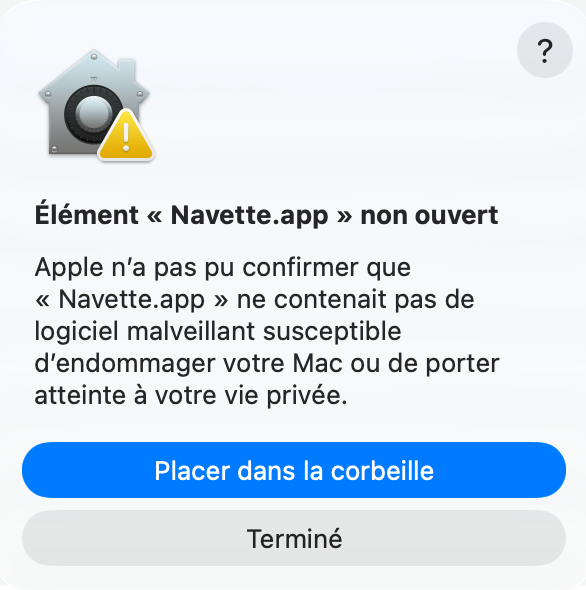
macOS says that “Navette.app” was not opened. Click Done, not Move to Trash.
Allow it in System Settings
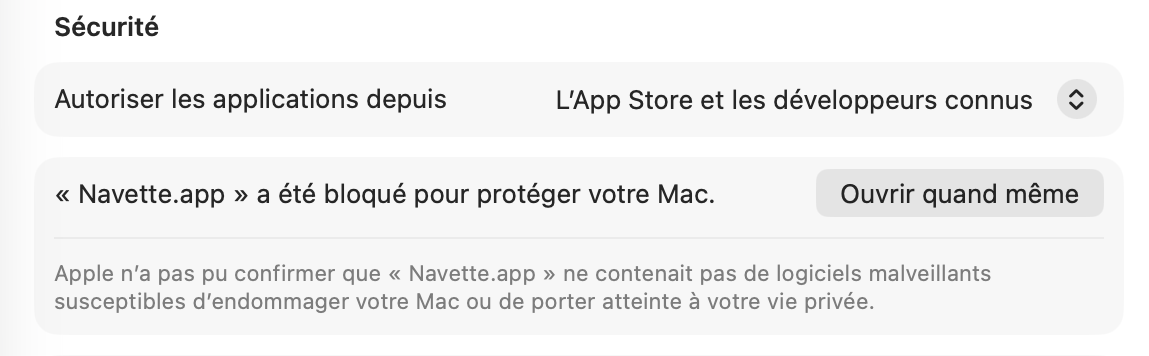
Open System Settings ▸ Privacy & Security and scroll down to the Security section. Next to “Navette.app was blocked to protect your Mac”, click Open Anyway, then authenticate with Touch ID or your password.
Confirm
In the “Open Navette.app?” window, click Open Anyway: Navette opens.
That's it: later launches work normally, without any warning.
Only do this for a copy downloaded from this website or from the official GitHub repository.
Advanced method, with Terminal
If you are comfortable with Terminal, this command removes the quarantine attribute added by the download, which has the same effect:
xattr -dr com.apple.quarantine /Applications/Navette.appEverything you need to work on your servers
Dual pane
Local and remote side by side, with a sites sidebar: colored avatar, protocol badge and recent sites.
Tracked transfers
Progress, speed and time remaining for every transfer, with resume after an interruption.
Compare and sync
Compare two folders, sync them, or let “Keep up to date” watch for changes.
Built-in SSH terminal
Open an SSH session on the server, in a pane or in its own window.
File preview
Preview remote files, PDFs included, rendered in isolation by macOS.
Direct editing
Open a remote file in the editor of your choice and edit it directly.
Batch rename and links
Rename series of files in one go and open
sftp://links directly.Command line
Use Navette from Terminal with the
navettecommand.At home on your Mac
Light or dark theme, with support for “Increase contrast” and “Reduce transparency”.
Signed updates
Navette offers you its new versions. Every update is signed (EdDSA) and its code signature is checked before installation.
Screenshots
Screenshots show Navette and macOS in French.

A terminal at your fingertips
An SSH session opens below the file panes, on the site you are already connected to. Detach it into its own window whenever you need.

Sites that are easy to tell apart
Each site has its own color, protocol and connection settings, with SSH agent authentication.

Unencrypted FTP, flagged
When a connection is not encrypted, Navette says so clearly in the toolbar.
Download Navette
FAQ
Is Navette free?
Yes, Navette is free, with no ads and no account to create.
Which version of macOS do I need?
macOS 26 or later. Navette uses Liquid Glass, the new macOS design, which does not exist on earlier versions.
How do I update Navette?
Navette checks for updates at most once a day and offers to install them, after checking their signature. This check can be turned off in the settings. All versions remain available on GitHub.
Why does macOS block the first launch?
Because Navette is not notarized by Apple. The First launch section explains how to allow it, once.